How q2Kindle works
Everything you need to know about sending articles to your Kindle.
Getting Started
q2Kindle turns web articles into a formatted ebook and delivers it straight to your Kindle. Here's how it works:
Save articles. Paste a URL into your dashboard, save from your browser with the Chrome extension, or save from your iPhone. q2Kindle extracts the article content, title, author, and read time automatically.
Queue them up. Your articles sit in a queue until you're ready. Add as many as you like, and they'll all be bundled into a single ebook.
Send to Kindle. Hit send (or set up automatic delivery) and q2Kindle creates an EPUB with a cover page, table of contents, and all your articles, then emails it to your Kindle. It shows up in your library like any other book.
Accounts & Sign-In
q2Kindle is passwordless. There's no password to create, remember, or reset. You sign in with just your email address, and signing in the first time creates your account automatically.
Enter your email. Go to the sign-in page and type your email address. There's no separate signup step.
Check your inbox. We email you a 6-digit code and a one-tap magic link. Enter the code, or click the link, and you're in.
Prefer Apple? On the web and in the iPhone app, you can also Sign in with Apple: one tap, no code to enter, and it signs you into the same account.
Why no passwords? They're the most common thing people lose, reuse, and get phished for. A code sent to the inbox you already control is simpler and safer: there's no password for anyone to steal, and nothing for you to manage. The same account works across the web app, the Chrome extension, and the iPhone app.
Setting Up Your Kindle
Two things need to happen before articles can reach your Kindle:
Find your Kindle email address. Go to Amazon → Manage Your Content and Devices → Preferences. Scroll down to “Personal Document Settings” and find your Send-to-Kindle email (it looks like something@kindle.com). Enter this in your q2Kindle settings.
Approve the sender. On the same Amazon page, find the “Approved Personal Document E-mail List” section and add kindle@q2kindle.com. This tells Amazon it's safe to deliver emails from q2Kindle to your device.
Send a test email. Go to your settings page and click the test button. If everything is set up correctly, a small test ebook will appear on your Kindle within a few minutes.
Supported Devices
q2Kindle delivers through Amazon's Send-to-Kindle email service, so it works with anything signed into your Amazon account:
- Kindle e-readers: Paperwhite, Oasis, Scribe, the basic Kindle, and older models that support personal documents.
- The Kindle app, on iPhone, iPad, and Android. Your ebooks sync to the app just like on a physical device, so you don't need a Kindle to use q2Kindle.
Every device and app signed into the same Amazon account shares one Send-to-Kindle email address, and your ebooks sync across all of them automatically.
Kobo, Nook, and other non-Amazon e-readers aren't supported. Send-to-Kindle is an Amazon-only service.
Adding Articles
From the dashboard
Paste any article URL into the input field on your dashboard and hit Add. q2Kindle will fetch the page, extract the readable content, and add it to your queue. You'll see the title, author, and estimated read time appear on the card.
From the Chrome extension
The Chrome extension lets you save the page you're currently reading straight to your queue. It captures the page as you see it, so it works even for articles behind paywalls. If you subscribe to a publication like the New York Times or the Wall Street Journal, the extension saves the full-length article, since it only captures what you can already read.
From your iPhone
The q2Kindle iPhone app adds articles on the go. From Safari or any other app, tap the Share button, choose q2Kindle, and the page is saved straight to your queue. You can also paste a URL directly in the app.
When extraction fails
Some websites block automated content extraction. When this happens, the article stays in your queue with a warning badge. It won't be included when you send to Kindle, but you can still see the original URL and try again later. The Chrome extension can often capture content that URL extraction can't.
iPhone App
The q2Kindle iPhone app brings your reading queue to your phone. Save articles on the go, manage your queue, and send issues to your Kindle.
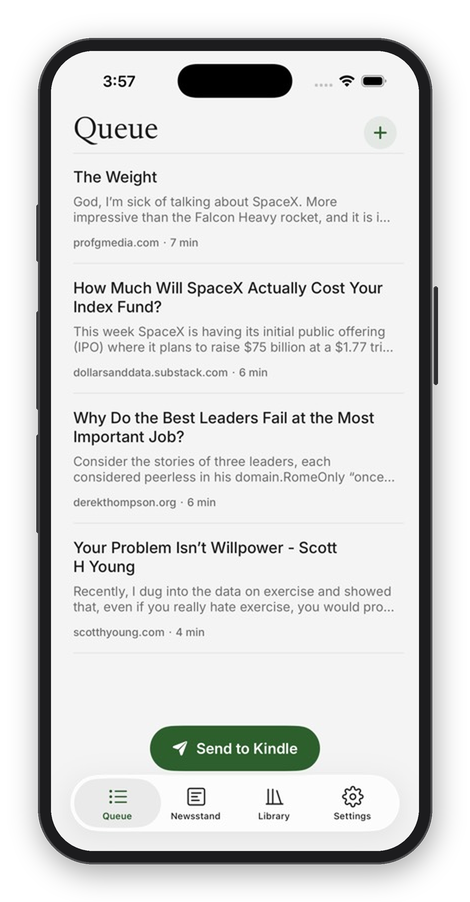
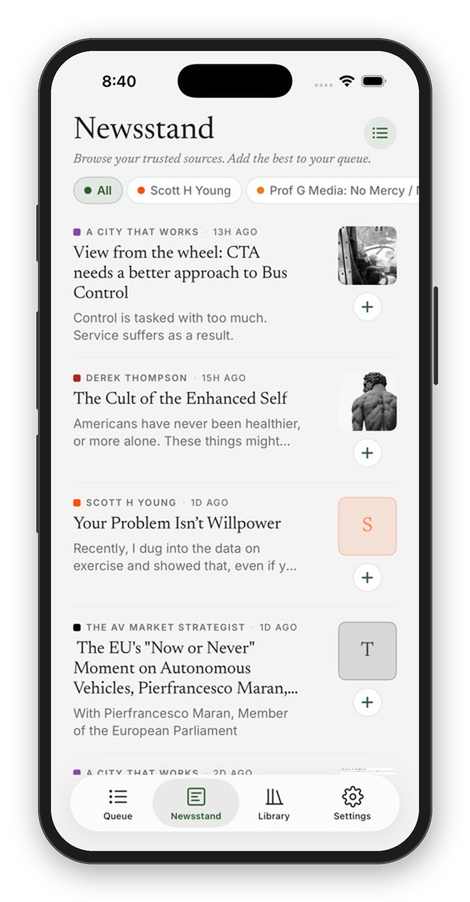

Requires iOS 16 or later.
Newsstand (RSS reader)
The Newsstand is a built-in RSS reader. Subscribe to the blogs, newsletters, and publications you follow, and q2Kindle pulls their latest articles into one place, ready to add to your queue and send to your Kindle.
Subscribing to a feed
Open the sources panel and paste any website URL. You don't need to know the exact feed address. q2Kindle automatically discovers the site's RSS feed for you. You can subscribe to up to 15 feeds, reorder them, and remove any you no longer want.
Browsing & queuing
The Newsstand shows the latest articles from all your feeds in a single river, newest first. Filter by source to focus on one feed at a time. When you spot something worth reading, tap the add button on the article to drop it straight into your queue, and from there it sends to your Kindle like any other article. Posts that require a paid subscription are flagged with a PAID label, so you know before you add one.
Sending to Kindle
When you click “Send to Kindle,” q2Kindle bundles all your queued articles into a single EPUB ebook. Each article becomes a chapter with its own entry in the table of contents. The ebook gets a branded cover page showing the date, issue number, article count, and total read time.
The EPUB is emailed to your Kindle address and typically appears in your library within a few minutes. On success, your queue is cleared and the send is logged in your Library.
If any articles in your queue had failed extraction, they're silently skipped, and you'll see a note telling you how many were skipped.
Automatic Delivery
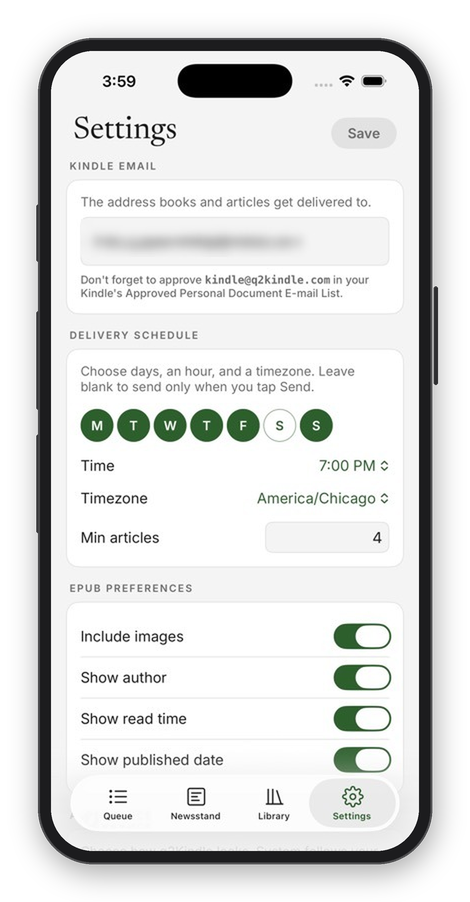
Instead of sending manually, you can schedule automatic delivery from your settings. Pick which days of the week you want delivery (any combination of Monday through Sunday), choose an hour, and set your timezone.
You can also set a minimum article count. If your queue has fewer articles than the minimum when the scheduled time comes, the send is skipped and your articles stay in the queue for next time.
Scheduled sends count toward your daily send limit, just like manual sends.
EPUB Formatting
Every ebook q2Kindle creates includes a cover page, a table of contents, and individually formatted article chapters. The cover shows a volume and issue number to help you track your reading over time. The volume is the year (Volume 1 = 2026, Volume 2 = 2027, and so on), and the issue increments with each send. So if you've sent 12 ebooks this year, your next one will be Volume 1, Issue 13.
You can customize what's included in your settings:
- Include images: on by default. Turn off for faster downloads and smaller file sizes.
- Show author: displays the article author at the top of each chapter.
- Show read time: estimated reading time (calculated at 238 words per minute).
- Show published date: the original publication date, if available.
Library & Favorites
Your Library keeps a history of everything you've sent to your Kindle, plus a Favorites tab for the articles worth bookmarking.
Favorite straight from your Kindle
Every article in your ebook ends with a Save to favorites link. Tap it right on your Kindle and the article is saved to your Favorites in q2Kindle. You can turn these links off in your settings.
Chrome Extension
The q2Kindle Chrome extension is an easy way to save articles you're viewing on the web directly to your queue.
- Click the extension icon on any article page, then hit save
- Or press Alt+Shift+Q to save the page you're reading
- Signing in on the website signs in the extension too, so there's no separate login
- Captures the full page HTML, so it works behind paywalls
- Saved articles appear in your dashboard queue immediately
Limits & Quotas
q2Kindle is free to use. To keep the service running smoothly, there are a few daily limits:
- Each “send” bundles all your queued articles into one email, so 10 sends can deliver hundreds of articles.
- Limits reset at midnight in your configured timezone.
- Text-only EPUBs are well under the size limit. If you're hitting it, try disabling images in your EPUB settings.
- You can see your current usage on the settings page.
Troubleshooting
Articles aren't arriving on my Kindle
The most common cause is a missing approved sender. Make sure you've added kindle@q2kindle.com to your Amazon approved senders list. Also double-check that your Kindle email address is spelled correctly in settings. Try sending a test email to verify the full pipeline.
An article failed to extract
Some websites actively block automated content extraction. The article will stay in your queue with a warning badge but won't be included when you send to Kindle. Try using the Chrome extension instead. It captures the page as you see it, which often works when URL extraction can't.
I've hit the daily send limit
The limit resets at midnight in your timezone. To make the most of each send, queue up more articles before sending. Each send bundles everything in your queue into one ebook, so you rarely need more than one or two sends per day.
I'm trying to save a PDF
q2Kindle extracts article content from web pages, not PDF files. If you paste a link that resolves to a PDF, extraction will fail. To read a PDF on your Kindle, you can email it directly to your Kindle address as an attachment; Amazon will convert it automatically.
The ebook looks different from the article preview
The article preview on q2Kindle is an approximation. Your Kindle applies its own fonts, margins, and formatting. The content will be the same, but the visual presentation depends on your device settings.
Still stuck? Email us at support@q2kindle.com and we'll help you out.
Roadmap
Here's what we've built and what we're working on.